How orders work: statuses from New to Completed
Every order moves New › Accepted › Preparing › Ready › Completed. Delivery orders add On the way before Completed, online orders start in Awaiting payment, and any open order can be Canceled.
Aktualisiert am 20. November 2026Wo Sie es finden
- Orders
- Orders
- Orders
Sie brauchen: The Orders permission. Moving an order to a step needs that step's permission too.
Every order placed on your website, in your app, or entered by your team shows up under Orders. Each one moves through a few steps, and your customer sees each change on their order page.
What each status means
| Status | What it means |
|---|---|
| Awaiting payment | The customer chose to pay online and hasn't finished paying. You aren't alerted and it isn't in New yet. See orders waiting for online payment. |
| New | The order is placed and waiting for you to accept it. New orders ring until someone accepts them. |
| Accepted | You confirmed the order. Customers see Confirmed. |
| Preparing | The kitchen is making it. |
| Ready | Packed and waiting for the driver, or for the customer to collect it (Ready for pickup). |
| On the way | Delivery orders only: the driver has it. Customers see Out for delivery. |
| Completed | Delivered or picked up. The timeline says Delivered or Picked up. |
| Canceled | Rejected or canceled by you, canceled by the customer, or canceled because an online payment wasn't completed. |
Delivery and pickup steps
- Pickup: New › Accepted › Preparing › Ready › Completed.
- Delivery: New › Accepted › Preparing › Ready › On the way › Completed.
The board and the list
In the web dashboard, Orders opens as a Board with four columns. You can switch to List, which adds tabs and bulk actions. The board groups statuses like this:
| Column | Holds |
|---|---|
| New | New orders. |
| Preparing | Accepted and Preparing orders. |
| Ready | Ready and On the way orders. |
| Done | Completed and Canceled orders. |
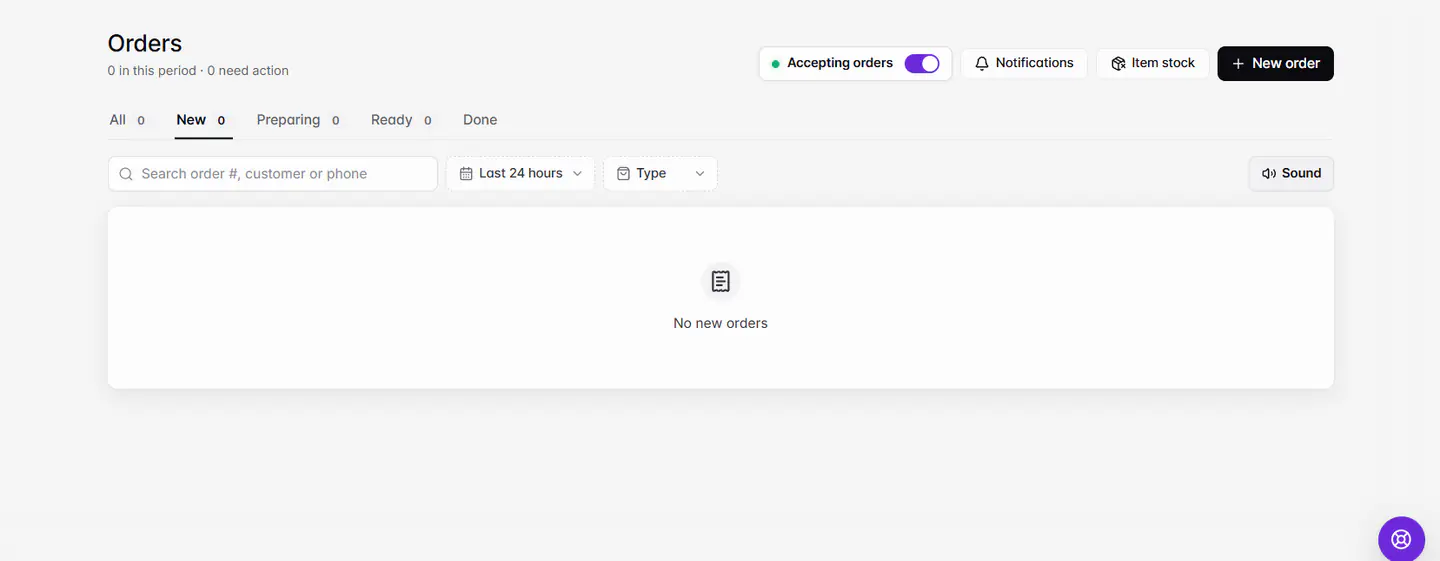
The List view has the tabs All, New, Preparing, Ready, Done and Awaiting payment. The All tab is web only. In the Ordavya Admin app, the Orders tab shows the same pages: swipe between them or tap the pills with the counts. The Awaiting payment page only appears when there are unpaid online orders.
By default the web list shows the last 24 hours. Use the date filter for Today, Yesterday, Last 7 days or a custom range of up to 90 days, and search by order number, customer name or phone.
Who can move an order
Each step has its own permission: Confirm orders, Mark preparing, Mark ready, Mark out for delivery, Complete orders and Cancel orders. Moving an order forward needs the permission for every step it passes. For example, kitchen staff can usually accept and prepare orders but not complete them. See staff roles.
Wenn etwas nicht klappt
Meldungen, die Sie sehen könnten, und was zu tun ist.
Your access doesn't include this order step.
Your role doesn't include this step. Ask the store owner to add it in Settings › Staff & access.
This order changed. Here is its current status.
A colleague moved or canceled the order on another device first. Check the status shown now, then act again if needed.
This order can't move to that step.
Some moves aren't possible, such as sending a pickup order to On the way. Choose another step.
No branch is assigned to your account. Ask the store owner to assign one.
The owner needs to give you at least one branch in Settings › Staff & access.