Add more languages to your store
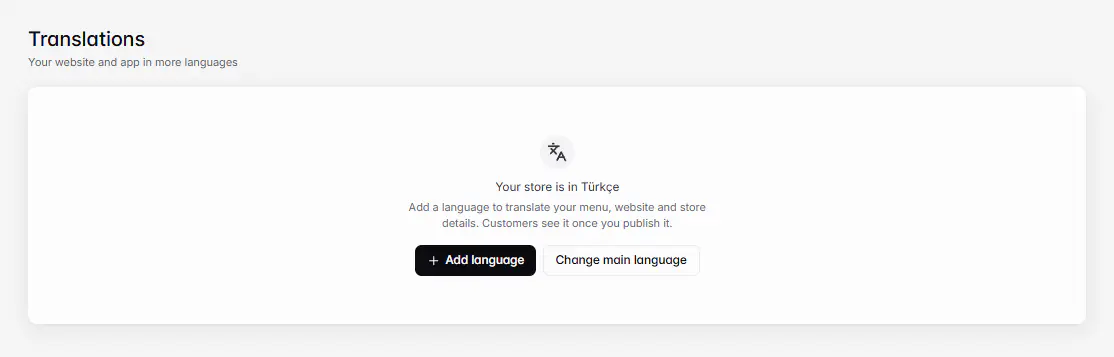
Go to Storefront › Translations, select Add language, pick a language and check its Reading direction. Translate your content, then publish the language so customers can pick it.
Aktualisiert am 20. November 2026Wo Sie es finden
- Storefront
- Translations
- Control Center
- Translations
Sie brauchen: Owner, or staff with Translations. Every plan includes all languages.
Your store has one Main language ("The source language of every translation; always published.") and can have up to 30 languages in total. Each language is published separately, so you can prepare it in private.
- 1Open TranslationsOn the web, go to Storefront › Translations. In the Admin app, go to Control Center › Translations.
- 2Add a languageSelect Add language and search for it. "It stays hidden from customers until you publish it."
- 3Check the directionReading direction is set from the language: Left to right or Right to left (Arabic, for example). You can change it.
- 4TranslateFill in your menu, store details and website texts. See Translate your menu, pages and policies.
- 5Publish itSwitch the language to Published. "Customers can pick a published language. Unpublished ones are only visible here."
What customers see
Your website gets a language picker, and the main language lives at your root address while others get their own prefix, such as `www.yourstore.com/ar/menu`. Customers can also change language under Account. Buttons and labels Ordavya provides come in English, Arabic, French, German and Spanish; in other languages they show in English, while your own content shows in the language.
Publish a language from the editor
In the Studio editor, the language menu in the top bar lists every store language with Main language, Published or Unpublished. The switch next to each one publishes or hides it ("{language} is now live for customers" / "{language} is hidden from customers"). Picking a language there also lets you type its texts right on the page.
Change the main language
Change main language works only while the main language is your store's only language. Remove the other languages first.
Wenn etwas nicht klappt
Meldungen, die Sie sehen könnten, und was zu tun ist.
A store can have up to 30 languages.
Remove a language you don't use before adding another.
This language is already added.
It's already in your list. Publish it if customers can't see it.
The main language can change only while it is the store's only language. Remove the other languages first.
Remove the added languages, change the main language, then add them back.
The main language stays published and can't be removed.
Change the main language first if you want to drop it.
You don't have permission to change the store's languages.
Ask the owner to give you Translations in Settings › Staff & access.