Connect a payment provider
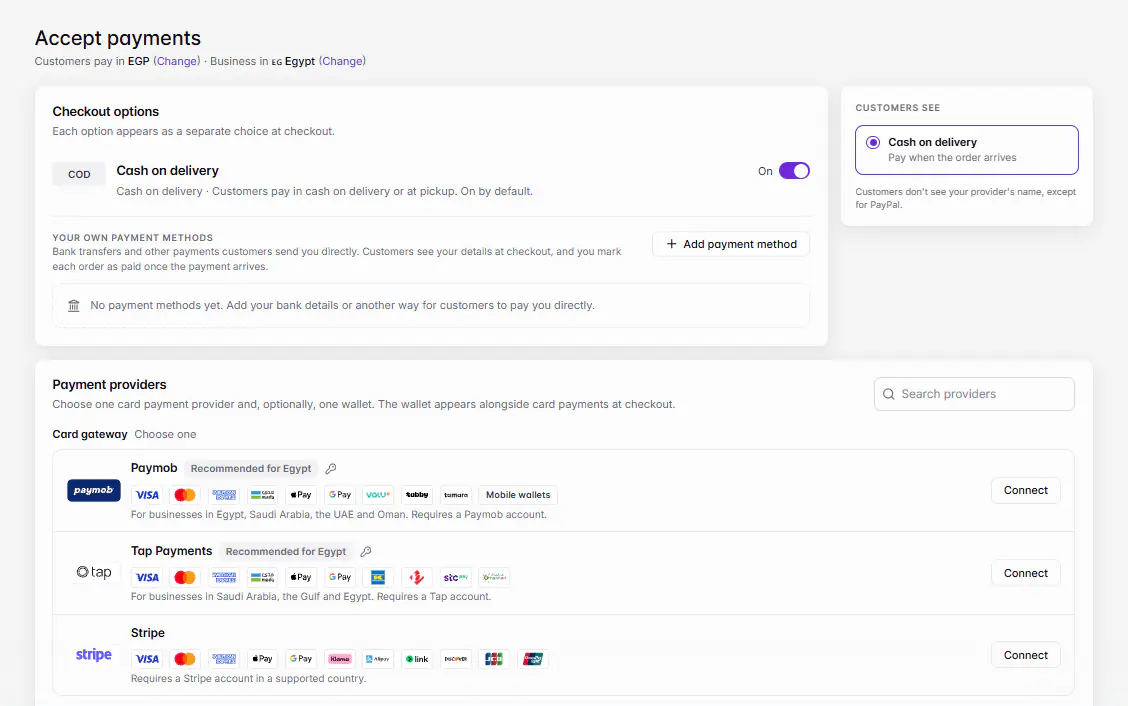
Open Settings › Accept payments, pick one card gateway that works in your country and currency, connect your account, then switch it On. Customers see it at checkout as Pay online.
Actualizado el 20 de noviembre de 2026Dónde encontrarlo
- Settings
- Accept payments
- Control Center
- Accept payments
- Cart
- Checkout
- Pay online
Necesitas: Owner, or a staff member the owner gave Accept payments to. An account with the payment provider.
Ordavya takes 0% commission. Customers pay the payment provider directly and the money goes to your provider account; the provider charges its own fees.
Choose a provider
You can use one card gateway and, optionally, one wallet. Which providers you can pick depends on your store currency and your business country, both shown at the top of the page.
| Provider | Good for |
|---|---|
| Paymob (card gateway) | Egypt, Saudi Arabia, the UAE and Oman. Cards, mada, Apple Pay, Google Pay, mobile wallets, and buy now pay later with valU, Tabby and Tamara. |
| Tap Payments (card gateway) | Saudi Arabia, the Gulf and Egypt. Cards, mada, Apple Pay, Google Pay, KNET, Benefit, STC Pay and other local methods. |
| Stripe (card gateway) | Businesses in a Stripe-supported country. Cards, Apple Pay, Google Pay, Klarna, Alipay and Link. |
| Square (card gateway) | The US, Canada, the UK, Ireland, Australia, Japan, France and Spain, charging in USD, EUR, GBP, CAD, AUD or JPY. |
| PayPal (wallet) | Stores charging in USD, EUR, GBP, CAD, AUD, JPY and 18 more currencies. Shown next to card payments. |
Connect your account
- 1Open Accept paymentsIn the web dashboard, go to Settings › Accept payments. In the Ordavya Admin app, go to Control Center › Accept payments.
- 2Check your currency and countryThe top line shows Customers pay in and Business in. Providers that don't support your currency are listed under Not available. Change the currency in Store settings or the country in Business info if they're wrong.
- 3Pick a card gatewayUnder Card gateway · Choose one, choose the provider you have an account with. A Recommended for badge shows the best fit for your country.
- 4Connect itClick Connect (or Switch if another card gateway is in use). Stripe and Square open the provider's own sign-in page. Paymob and Tap ask for the API keys from your provider dashboard. Paste them exactly as shown there.
- 5Confirm it's youPayment settings are protected. Enter the code we email you (or your password) to save the change.
- 6Switch it OnUnder Checkout options, make sure the provider is On. The Customers see box shows exactly what appears at checkout.
- 7Place a test orderOrder something small from your own website or app and pay online, then check it under Payments.
What your customers see
Customers see Pay online with the card brands you accept, never your gateway's name. PayPal is the exception and shows as Pay with PayPal. After paying, they come back to their order page, which shows Confirming your payment… for a few seconds.
An online order must be paid within 30 minutes or it's cancelled. Until it's paid, you see it under Orders › Awaiting payment.
Si algo sale mal
Los mensajes que podrías ver y qué hacer.
Not available in {currency} · These providers don't support your store's currency
Pick a provider from the Card gateway list instead, or change your store currency in Settings › Store settings before you take your first orders.
This store isn't taking payments right now.
Your customers see this when no checkout option is On. Switch on a provider or Cash on delivery under Checkout options.
Online payment from {amount}
Orders below your provider's minimum can't be paid online. Customers can still choose cash on delivery if it's on.
No wallet supports {currency} yet.
PayPal doesn't support your store currency. Card payments through your gateway still work.
Preguntas frecuentes
Does Ordavya take a cut of my sales?
No. Every plan has 0% commission. Your payment provider charges its own processing fees.
Can I use two card gateways at once?
No. Choose one card gateway and, optionally, one wallet such as PayPal. You can add cash on delivery and your own payment methods as well.
Where do refunds happen?
In your payment provider's own dashboard. The refund then shows in Payments in your Ordavya dashboard.