Designs, versions and setting a design as live
A design is a full look for your website or app, and visitors only see the live one. Publish a design, then use Set as live on the Designs list (or Schedule…) to switch. Version history restores older published versions.
Aktualisiert am 20. November 2026Wo Sie es finden
- Storefront
- Ordavya Studio
- Website
- Ordavya Studio
Sie brauchen: Owner, or staff with Website designer or Mobile app designer. The number of designs depends on your plan.
"A design is a full look for your website. Visitors only see the live one." Keeping more than one lets you prepare a Ramadan or summer look while the current one stays online.
What the labels mean
| Label | Meaning |
|---|---|
| Live | The design customers see now. |
| Live · unpublished changes | Live, but you have edits customers don't have yet. Select Publish. |
| Draft | Not shown to customers. |
| Scheduled | Set to go live later (Goes live …) or live for now (Live until …). |
| Archived | Put away. It still counts toward your limit. |
Set a design as live
- 1Publish it firstOpen the design and select Publish. Only a published version can go live.
- 2Open DesignsGo to Storefront › Ordavya Studio and select Designs on the Website or Mobile App card.
- 3Choose Set as liveOpen the design's More menu and select Set as live.
- 4ConfirmCheck Current live and New live, then select Confirm. "Website visitors switch to this design right away. The old live design stays as a draft."
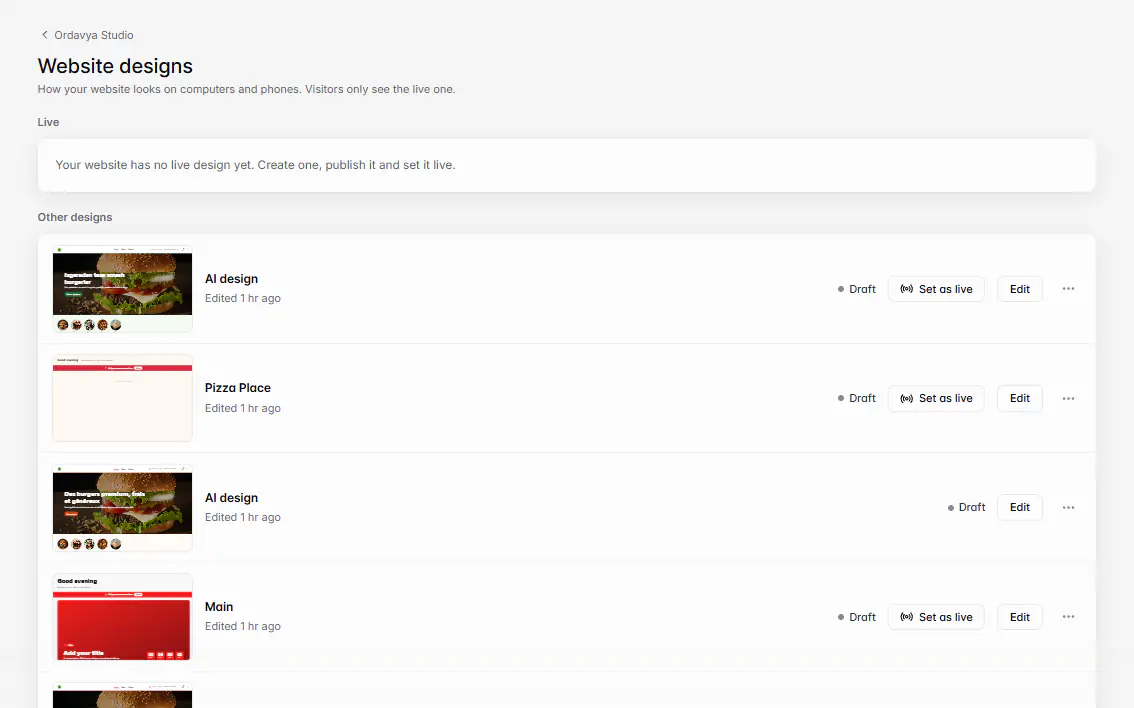
Schedule a design
On a published design, choose Schedule…. Set Go live at, and optionally Until (optional) and Then switch back to another design ("Leave empty and it stays live."). Times are in your store's time zone. A schedule uses the version published at that moment, so "Publish the design again before the start to include later edits." Use Edit schedule or Cancel schedule to change it.
Restore an older version
In the editor, select Version history. It lists "Published versions of this design. The newest 30 are kept." Choose one and select Restore: your draft, and any unsaved changes, are replaced by that version. Nothing changes for customers until you select Publish.
Rename, duplicate, archive and delete
Each design's menu also has Edit, Preview, Rename, Duplicate and Archive. You can only delete an archived design: "Its versions are deleted with it. This can't be undone." The live design can't be archived or deleted; set another design live first.
Wenn etwas nicht klappt
Meldungen, die Sie sehen könnten, und was zu tun ist.
Publish the design before scheduling it.
Open the design, select Publish, then schedule it.
This schedule overlaps another one. Pick other times.
Two schedules can't run at the same time. Change the times or cancel the other schedule.
Pick a start time in the future.
Choose a Go live at time later than now.
The end must be after the start.
Set Until after Go live at.
Archive the design before deleting it.
Select Archive first, then Delete.
The live design can't be changed this way. Set another design live first.
Set a different design live, then archive or delete this one.
You've used all your designs. Delete an archived design or upgrade your plan.
Delete an archived design to free a slot, or upgrade in Settings › Plan & usage.