Staff roles explained
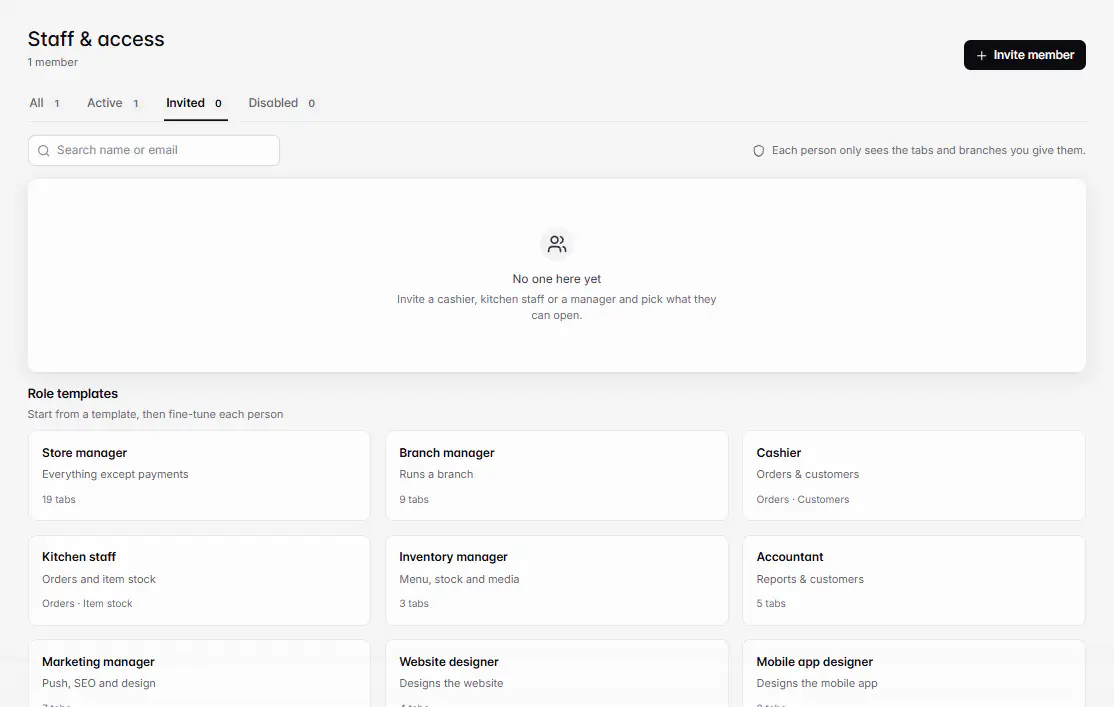
A role is a starting set of access. Pick the closest one when you invite someone, then turn individual tabs and order steps on or off. Only the owner has full access, including payments, plan and billing.
Actualizado el 20 de noviembre de 2026Dónde encontrarlo
Panel web
- Settings
- Staff & access
App Ordavya Admin
- Control Center
- Staff & access
Roles are templates, not fixed job titles. If none fits, choose Custom and switch on exactly what the person needs.
The role templates
| Role | Starts with |
|---|---|
| Store manager | Everything except Accept payments. All branches. |
| Branch manager | Home, Orders with every step and Add orders, Customers, Sales reports, Products, Item stock, Push notifications, Branch settings and Staff & access. Chosen branches. |
| Cashier | Orders (confirm, out for delivery, complete, cancel, add orders) and Customers. Chosen branches. |
| Kitchen staff | Orders (confirm, preparing, ready) and Item stock. Chosen branches. |
| Inventory manager | Products, Item stock and Media. All branches. |
| Accountant | Home, Sales reports, Payments history, Customers and Orders (view). All branches. |
| Marketing manager | Push notifications, Visitors, SEO, Media, Translations, Website designer and Mobile app designer. All branches. |
| Website designer | Website designer, Media, SEO and Translations. |
| Mobile app designer | Mobile app designer, Media and Translations. |
| Custom | Nothing. You pick everything. |
What each switch opens
| Group | Switches |
|---|---|
| Orders & customers | Home (today's orders and sales), Orders (see orders), Customers (profiles, points, blocking). |
| Order steps | Confirm orders, Mark preparing, Mark ready, Mark out for delivery, Complete orders (finish and record payment), Cancel orders, Add orders (phone and counter orders). |
| Menu | Products (menu, categories and prices), Item stock, Media. |
| Website & app | Website designer, Mobile app designer, Translations, SEO, Domain. |
| Marketing | Push notifications. |
| Reports | Sales reports, Visitors, Payments history. |
| Settings | Store settings (fees, delivery, loyalty and taxes; also opens Receipts and Discount codes), Business info, Branch settings, Staff & access. |
| Sensitive | Accept payments. Only the owner can give it. |
Owner only
No staff role can open Plan & usage or billing, submit the mobile app, trash or delete the store, add or delete branches, or transfer ownership.
Good to know
- Home, Orders, Customers, Sales reports, Visitors and Branch settings follow the person's branches. See Limit a staff member to certain branches.
- Someone with only kitchen access sees order items without prices.
- Order steps are checked one by one. Without Cancel orders, a staff member sees Your access doesn't include canceling orders.
- Access changes apply live. The person gets a notification, and screens they can no longer open close.
Si algo sale mal
Los mensajes que podrías ver y qué hacer.
Your access doesn't include this order step.
Ask the owner or a manager to turn on that step under Can move orders to.
You don't have access to any screen in this store yet. Ask the owner to update your access.
The owner needs to turn on at least one tab for you in Staff & access.
You don't have permission to view this page.
Ask the owner for the tab that opens this page.
¿Te ha sido útil este artículo?
¿Necesitas más ayuda?Chatea con nuestro equipo o abre un ticket desde tu panel. Respondemos ahí y te avisamos.
Contactar con soporte