Customers can't place an order
Usually a setup step is missing (currency, contact phone, a branch, opening hours), every branch is closed or on hold, delivery and pickup are paused, or no payment method is on. Start with Finish setting up on Home, then check Branches and Accept payments.
Actualizado el 20 de noviembre de 2026Dónde encontrarlo
- Home
- Dashboard
- Cart
- Checkout
Necesitas: Owner, or staff with Store settings, Branch settings and Accept payments to fix each cause.
Work through these checks in order. Each one lists the message your customers see, so you can match it to what they told you.
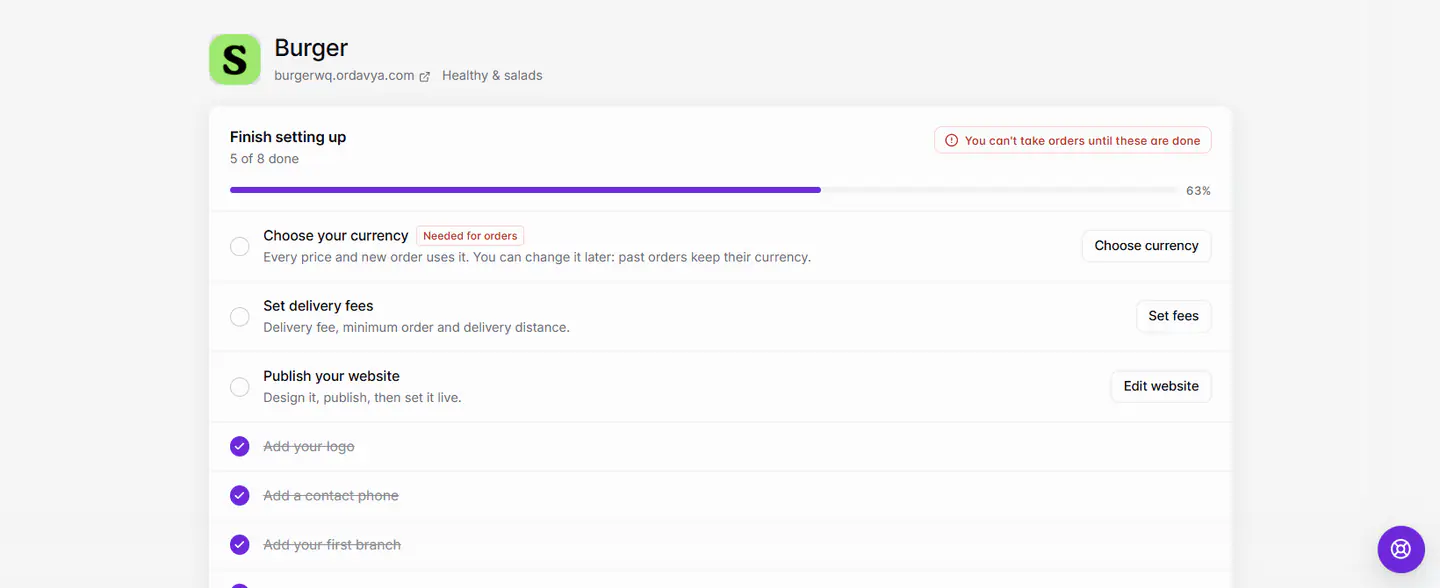
1. Finish setting up
If Home shows Can't take orders yet, open the Finish setting up checklist. Steps marked Needed for orders block ordering: choose your currency, add a contact phone, add your first branch and set opening hours. See The setup checklist.
2. Branches, hours and pausing
- Check the Accepting orders card in the sidebar (web) or on Dashboard (app). Not accepting orders means every branch is closed, paused or turned off.
- Closed now · opens {time}: customers can only order while a branch is open. Check opening hours.
- Hours not set · not taking orders: set hours for the branch.
- On hold · not taking orders or Paused · customers can't order right now: resume it with Pause or resume each branch. See Pause orders.
- Turned off · hidden from customers: set the branch back to Active in Settings › Branches.
3. Delivery and pickup
In Settings › Store settings › Ordering, delivery or pickup may be Paused (greyed out) or Off (hidden). For delivery, the customer's address must be inside one of the branch's delivery areas. See Turn delivery or pickup on, pause or off and Outside the delivery area.
4. Payments
If no checkout option is on, customers see This store isn't taking payments right now. Turn on Cash on delivery or connect a payment provider in Settings › Accept payments.
5. Other causes
- A blocked customer sees Account disabled. Unblock them in Customers. See Block or unblock a customer.
- The minimum order isn't reached: lower it per delivery area, or for pickup in Store settings.
- Items unavailable: out of stock, or not sold at the customer's branch.
- Paused by Ordavya: you see a Paused by Ordavya screen. Your website and app show customers that the store is unavailable until Ordavya resumes it. Contact support.
- Old app version: if customers see Update required, they need to update your app first.
Si algo sale mal
Los mensajes que podrías ver y qué hacer.
This store isn't taking orders yet.
Finish the steps marked Needed for orders in Finish setting up on Home.
Store is currently closed
No branch is open right now. Check opening hours in Settings › Branches.
Branch not accepting orders
The branch is on hold or paused. Resume it from the Accepting orders card.
The restaurant isn't taking orders right now.
Every branch is closed, on hold or turned off. Resume a branch or check its hours.
Delivery isn't available right now.
Delivery is Paused or Off in Store settings › Ordering. Pickup works the same way.
This store isn't taking payments right now.
Turn on Cash on delivery or connect a provider in Settings › Accept payments.
This account can't place orders. Please contact the restaurant.
The customer is blocked. Unblock them in Customers if that was a mistake.
Add {remaining} more to reach the {minimum} minimum.
The cart is below the minimum order. Lower the minimum if it's too high.
You have several orders waiting for the store or for payment. Pay or cancel a waiting order, or try again once one is accepted.
Accept or cancel that customer's waiting orders in Orders.
{store} is unavailable right now
Your store is paused by Ordavya or the project is in the trash. Check for a Paused by Ordavya notice and contact support, or restore the project from Trash.