SEO: page titles and descriptions in every language
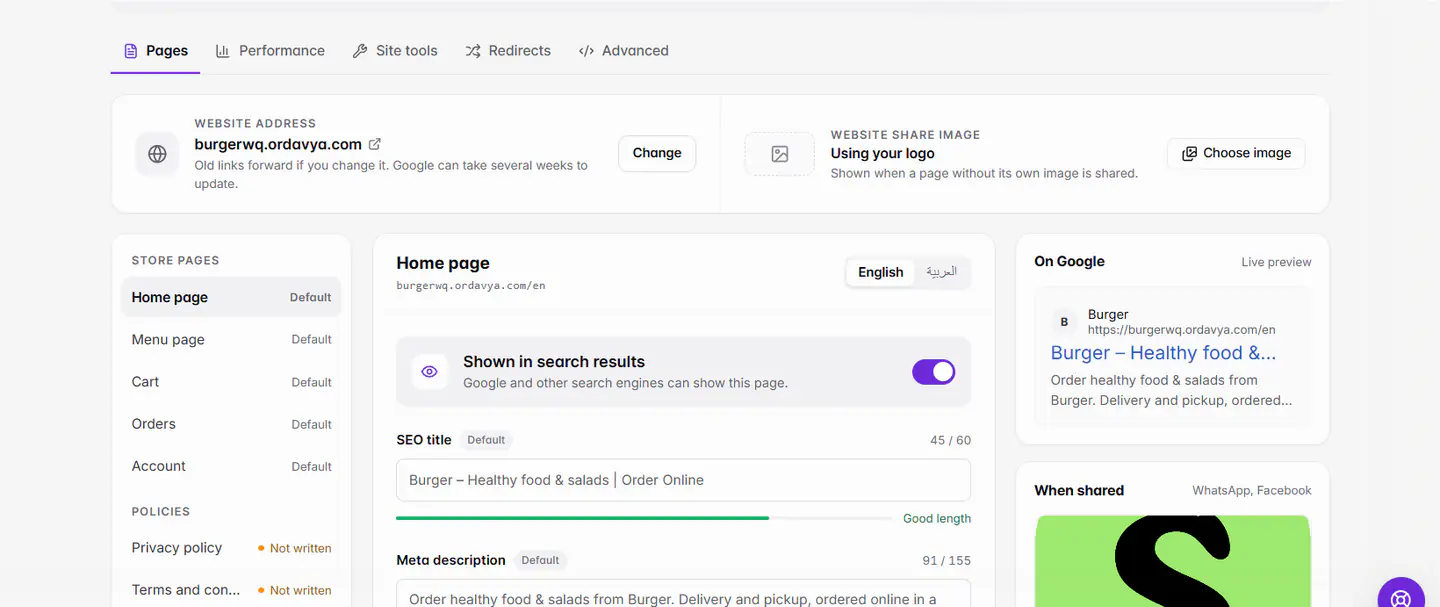
Open Marketing › SEO, choose a page on the Pages tab, and write its SEO title, Meta description and Focus keyword. Empty fields use good defaults built from your store. Changes go live as soon as you Save changes.
آخر تحديث 20 نوفمبر 2026أين تجدها
- Marketing
- SEO
- Pages
- Control Center
- SEO
تحتاج إلى: A website project. The owner, or staff with SEO access. Available on every plan.
Ordavya already writes a title, description, structured data and a sitemap for every page from your store's name, category, city and menu. You only change what you want to say differently.
Write a page's title and description
- 1Open SEOOn the web, go to Marketing › SEO. The Pages tab opens first. In the Ordavya Admin app, go to Control Center › SEO.
- 2Pick a pageChoose from Store pages (Home page, Menu page, Cart, Orders, Account) or Policies.
- 3Pick the languageSwitch the language at the top of the page and write each language separately.
- 4Write the SEO titleAbout 60 characters. Put your store name and what you sell, like The Corner Kitchen – Burgers in Downtown. The hint says Good length or Long — Google may cut it.
- 5Write the meta descriptionOne or two sentences about the page. Google shows about 155 characters.
- 6Add a focus keywordThe words people type to find this page, 2 to 5 words, like burger delivery. Checks show whether it's In the title and In the description.
- 7Check the preview and saveThe Google preview and When shared preview update as you type. Select Save changes: you see SEO settings saved. They're live on your website.
More than two languages
The Pages tab switches between English and Arabic. For your store's other languages, open the page in the Studio editor, choose Page settings and fill in the SEO fields for each language. Both places save the same settings. Extra pages you create in Studio get their SEO in Page settings too. See Add more languages to your store.
Products and categories
Each product has its own SEO card in the product editor, with title, description and Image description (alt text). Empty fields use the product's name and description.
The setup checklist
At the top of the SEO page, Get {name} found on Google lists four steps: Home page title, Verify with Google, Website share image and Write policy pages. Choose a step to jump to it.
إذا حدثت مشكلة
الرسائل التي قد تظهر لك وما عليك فعله.
Only staff with SEO access can edit SEO.
Ask the owner to give you SEO access in Settings › Staff & access.
This policy isn't written yet, so search engines don't see its page. Write it in the website editor under Pages › Policies.
Write the policy first. See Write your privacy, terms and refund policies.
أسئلة شائعة
Do I need to publish after changing SEO?
No. SEO settings go live on save, separately from your design.
Why doesn't Google show my new title yet?
Google re-reads pages on its own schedule, often within days. Connecting Search Console helps. See Connect Google Search Console.
Can I edit the Cart, Orders and Account titles?
Yes. Those pages are never on Google, but their title shows in the browser tab and when the link is shared.