The setup checklist: everything before your first order
On Home, the Finish setting up checklist lists what's left. Steps marked Needed for orders block ordering until they're done; the rest help you sell more. Click a step to open the right page.
Mis à jour le 20 novembre 2026Où le trouver
- Home
- Dashboard
Il vous faut: Owner. Staff see the steps their access opens.
Every new store has a Finish setting up card. While something important is missing, it shows Can't take orders yet and how many steps are left before you can open for orders.
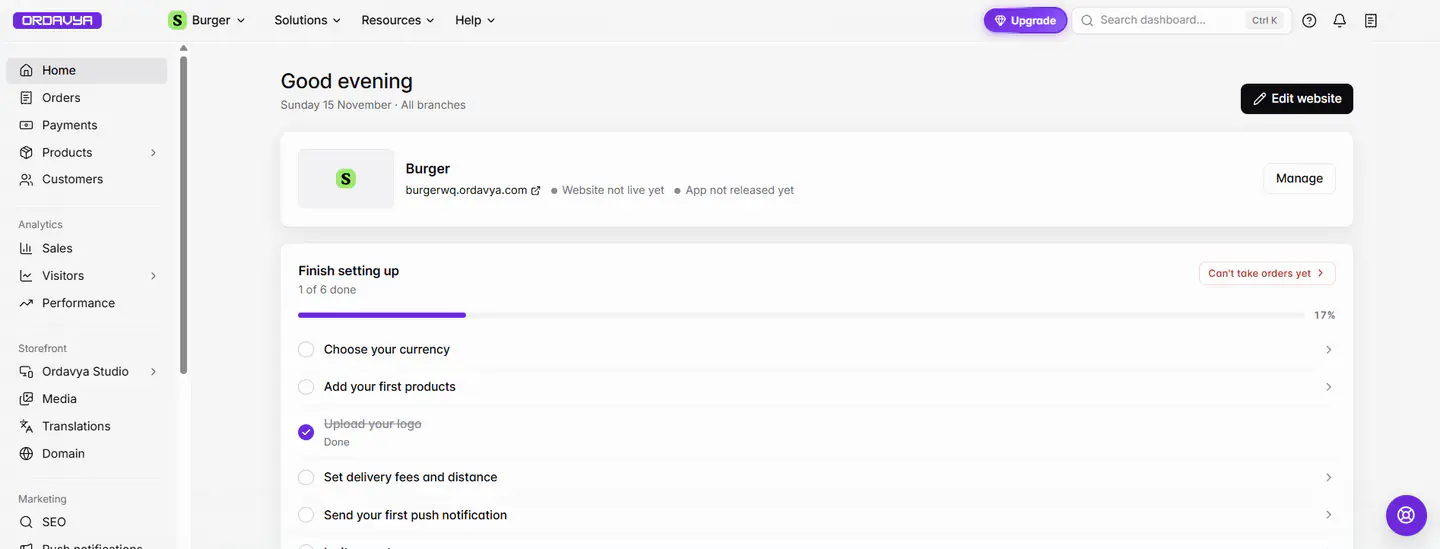
What customers need before they can order
- 1Choose your currencyOpen Settings › Store settings and confirm the currency. Customers can't order until it's set. You can change it later, but not while an order is still open; past orders keep the currency they were placed in.
- 2Add your first branchIn Settings › Branches, add the place you cook and deliver from and pin it on the map. Give it a phone number, or add a contact phone in Settings › Business info. See Add a branch.
- 3Set opening hoursCustomers can only order while a branch is open. Set the hours on the branch. See Branch opening hours.
- 4Add your first productsAdd your menu with photos and prices in Products › All products. See Add a product.
- 5Set delivery feesDraw where you deliver and set fees and a minimum order, or offer pickup only. See Draw delivery areas.
- 6Publish your websiteDesign it, publish, then set it live. For an app, publish its design and submit it to the stores.
Recommended steps
| Step | Why |
|---|---|
| Accept online payments | Connect a card gateway or PayPal. Cash on delivery is on by default. See Connect a payment provider. |
| Upload your logo | Shown in your app, on your website and on order screens. |
| Connect a domain | Your own address, like `www.yourstore.com`. Needs a paid Website plan. |
| Go Premium | More branches, your own domain and higher limits. |
| Set up your SEO | How your store shows up on Google. |
| Release your Mobile App | Send your app to the App Store and Google Play. |
| Send your first push notification | Shown once your app is in the stores. |
| Invite your team | Staff, managers and drivers. See Invite staff. |
Use the To do, Done and All tabs to filter the list. Finished steps move to the end.
On the project screen
Your project page (open it from All projects, or Storefront › Ordavya Studio) has a shorter Finish setting up list ({n} of {m} done) with the essentials: logo, currency, contact phone, first branch, opening hours, delivery fees and publishing. Its banner reads You can't take orders until these are done.
En cas de problème
Les messages que vous pourriez voir, et quoi faire.
Can't take orders yet
Click it to open the first step that still blocks orders, usually the currency, a branch with a phone number, or opening hours.
Choose your currency to start taking orders. Customers can't order until it is set.
Pick your currency in Settings › Store settings and save.
Hours not set · not taking orders
Set opening hours on the branch in Settings › Branches.