Change your app's name, icon or splash
The name and icon in the stores come from your listing in Submit my app (Edit listing). They're locked while the app is being published, and changing them on a live app means a new release. The splash uses your app's logo on your live design's main colour.
Mis à jour le 20 novembre 2026Où le trouver
- Storefront
- Ordavya Studio
- Submit my app
- My projects
- Submit my app
Il vous faut: Owner. A project with a Mobile App.
Change the app name or icon in the stores
- 1Open Submit my appOn the web, from your project's Mobile App card in Ordavya Studio. In the Admin app, from My projects and your project.
- 2Tap Edit listingIf you haven't submitted yet, the form is already open.
- 3Change the name or iconApp name: up to 30 characters. App icon: a square PNG or JPG, 1024×1024, no transparency. Tap Change icon to pick a new one.
- 4SaveTap Save listing (or Submit my app if it's your first time). You see "Listing saved."
The name and icon are built into the app file in the stores. On an app that's already live, a new name or icon reaches customers only after a new version goes through Apple and Google review. Contact Ordavya support with the category Customer app to ask when it will be released.
The name and logo inside the app
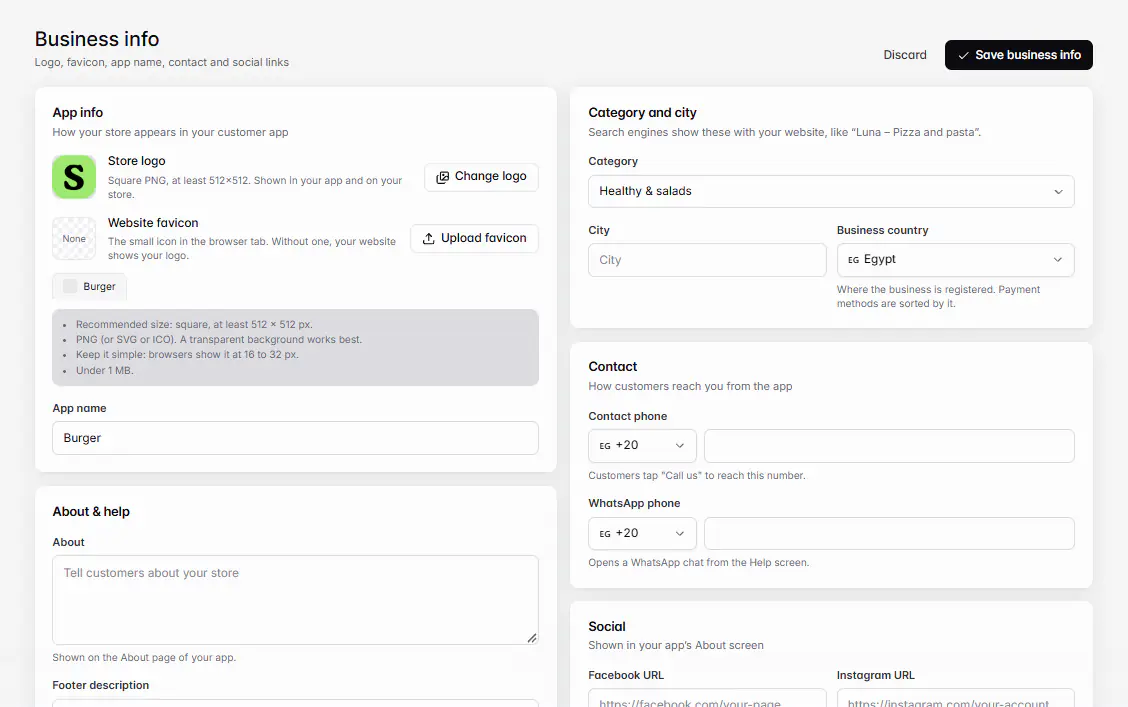
Inside the app, your store shows the App name and Store logo from Settings › Business info (Control Center › Business info in the Admin app). These update live.
- Store logo: a square PNG, at least 512×512. Shown in your app and on your store.
- App name: how your store appears in your customer app.
The splash screen
The splash is the first screen while the app opens. It shows your app's logo on your live design's main colour. To change the colour, change the main colour in your app design's Theme in Ordavya Studio, then publish and set it as live. The logo on the splash is part of the app file, so like the icon it changes with a new release.
En cas de problème
Les messages que vous pourriez voir, et quoi faire.
The app name and icon are locked while your app is being published. Description and support details can still change.
Wait until the status is Live or Needs changes, then edit the name or icon.
Couldn't read the image. Try another one.
Use a square PNG or JPG, 1024×1024, with no transparency.