Organise products into categories
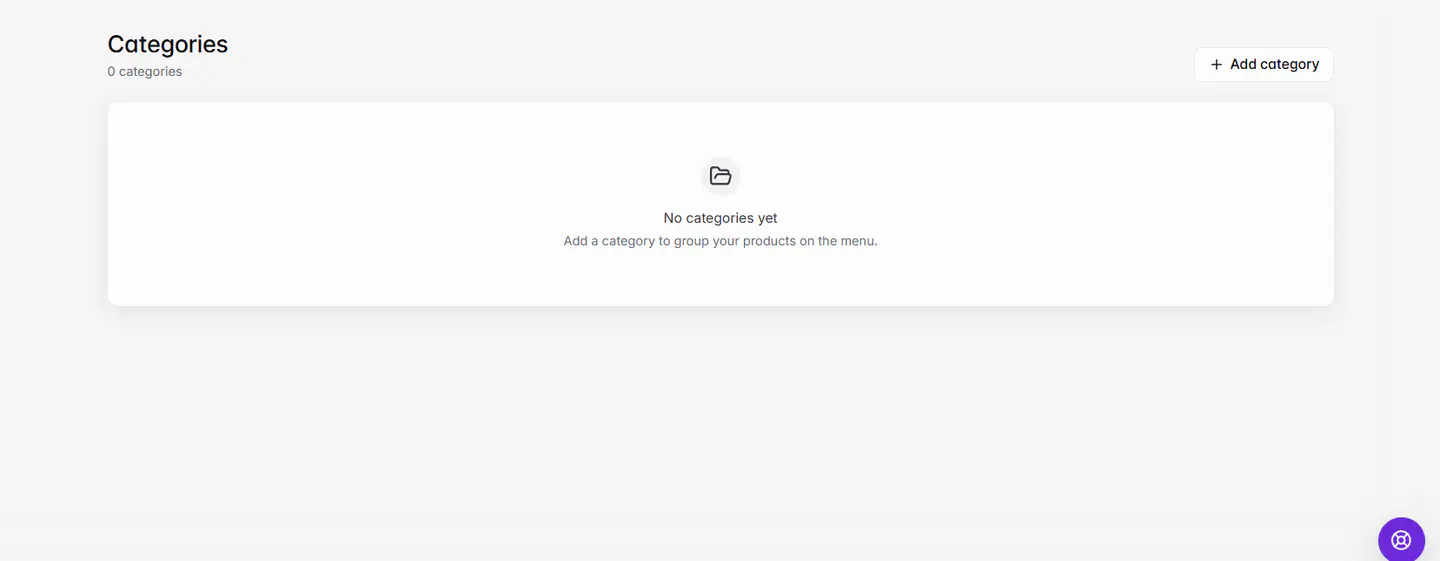
Go to Products › Categories, click Add category, then drag a category by its handle to change the order customers see. Open a category to set its icon or image and pick its products.
Mis à jour le 20 novembre 2026Où le trouver
- Products
- Categories
- Control Center
- Categories
Il vous faut: Owner, or a staff member with the Products permission.
Categories are the sections of your menu, like Starters, Pizza and Drinks. Customers browse by category on your website and in your app, in the order you set.
Add and order categories
- 1Open CategoriesGo to Products › Categories on the web, or Control Center › Categories in the Admin app.
- 2Add a categoryClick Add category, type a Category name (up to 60 characters) and confirm.
- 3Change the orderDrag a category by its handle. The new order saves straight away and shows Order saved.
- 4Add an icon or imageOpen the category with Edit category. Under Icon or image, choose an icon, type an emoji, or choose an image. An image is used when there is one.
- 5Pick its productsUnder Products in this category, search and tick the products to include, then click Save.
A product in more than one category
A product has one main category, which is its address on your website. To show it in other categories too, open the product and pick them under Also show in. Adding a product to a category from the Categories page works the same way: its main category stays the same.
Delete a category
Open the category's menu and choose Delete category. Its products stay on your menu without a category and show under Uncategorized. Banners and offers that link to the category stop linking to it. This can't be undone.
Tips for a clear menu
- Put your most popular categories first. Customers often order from the first one they see.
- Keep names short, like "Pizza" or "Drinks", so they fit on category tabs on a phone.
- Use the same style of icon or image for every category so the menu looks tidy.
Category names, like product names, can be translated on the Translations page. On the web, each category also has its own SEO card for its page title and description.
En cas de problème
Les messages que vous pourriez voir, et quoi faire.
A category with this name already exists.
Use a different name, or add the products to the existing category.
Enter a category name.
Type a name before saving.
This category no longer exists.
Someone deleted it. Reload the page.