Connect Google Search Console and read Performance
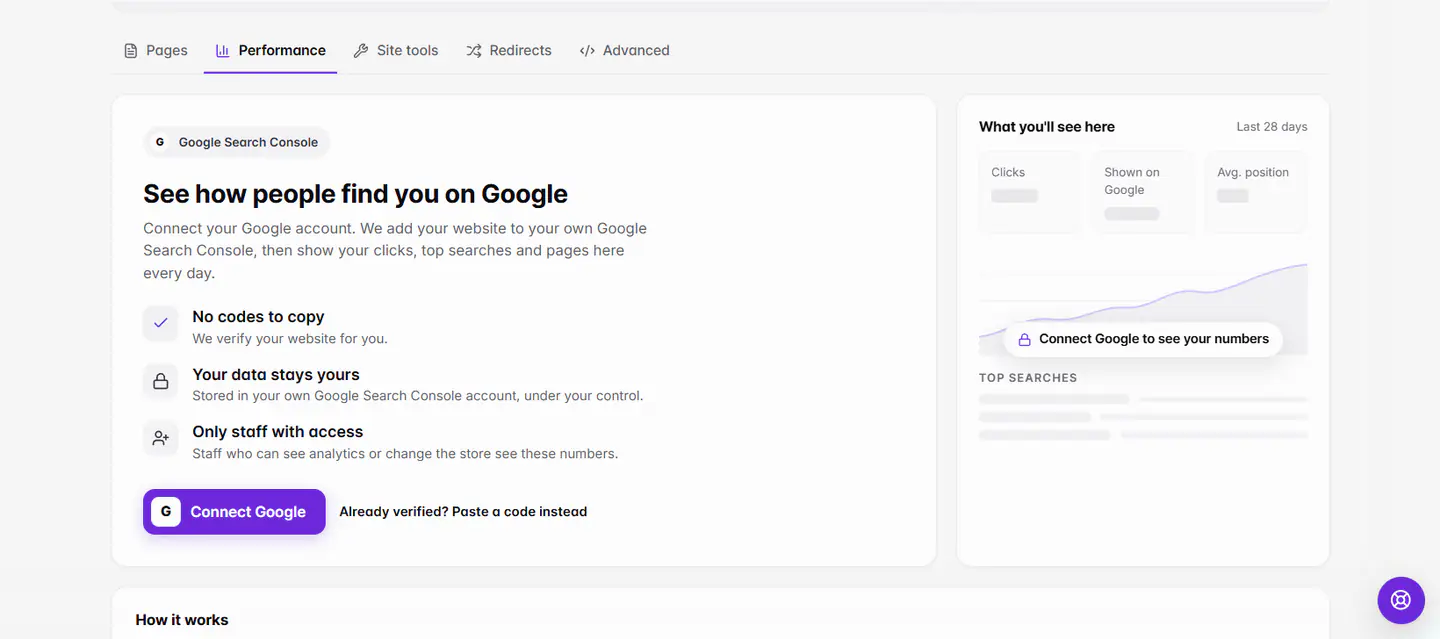
Open Marketing › SEO › Performance and choose Connect Google. Ordavya adds and verifies your website in your own Google Search Console, submits your sitemap and shows your Clicks, Shown on Google, top searches and top pages. No codes to copy.
Updated 20 November 2026Where to find it
- Marketing
- SEO
- Performance
- Control Center
- Performance
You need: A website project and a Google account. Connecting needs the owner, or staff who can change the store settings. Staff with analytics access can read the numbers.
Search Console is Google's free tool that shows how people find your website. Your data is stored in your own Google Search Console account, under your control. You can also open the same numbers from Analytics › Performance.
Connect Google
- 1Open PerformanceOn the web, go to Marketing › SEO and choose the Performance tab. In the Ordavya Admin app, go to Control Center › Performance.
- 2Choose Connect GoogleSign in with the Google account you want to use and allow access.
- 3Let Ordavya set it upOrdavya adds your website to your Search Console, verifies it and submits your sitemap. You see Connected to Google Search Console and Connected as {email}.
- 4Wait for the first numbersGoogle usually reports the first clicks within a few days of connecting. After that, numbers update every day.
Read your numbers
| Number | What it means |
|---|---|
| Clicks | How many times people clicked your website in Google results. |
| Shown on Google | How many times your website appeared in results (impressions). |
| Click rate | Clicks divided by times shown. |
| Average position | Where you usually rank. Lower is better: 1 is the top result. |
| Top searches, Top pages | The words people typed and the pages they opened. |
| Top countries, Devices | Where people search from and on what. |
Pick Last 7 days, Last 28 days or Last 3 months. Google's numbers arrive 2–3 days late, so today and yesterday are usually empty. The sitemap line, such as Sitemap: submitted, shows when Google last read it and how many pages it found.
Already verified, or another search engine?
If you'd rather verify with a code, choose Already verified? Paste a code instead, or paste the tag in Site tools under Search engines. The same place takes codes for Bing, Pinterest, Yandex, Naver and Meta domain verification.
Disconnect Google
Choose Disconnect. Ordavya stops reading Search Console and deletes the numbers saved here. Your website stays in your own Google Search Console. If you change your primary domain later, Ordavya adds the new address on its next nightly check.
If something goes wrong
The messages you might see, and what to do.
Google couldn't reach your website yet. Publish it; we'll try again tonight.
Publish your website and set a design as live. See Publish your website.
Google stopped the access. Connect Google again to keep your numbers updating.
Choose Connect again and sign in with the same Google account.
Ask someone who can change the store settings to connect Google.
Only the owner or staff with store settings access can connect. You can still read the numbers once it's connected.
This doesn't look right. Check it and paste it again.
Paste the whole verification tag Google gives you, or only the code inside it.
Common questions
Is it free?
Yes. Google Search Console is free, and connecting it from Ordavya costs nothing.
Do I need to submit a sitemap myself?
No. Ordavya makes your sitemap, keeps it up to date and submits it to Search Console for you.