Refunds, payouts and disputes
Refunds, payouts and disputes happen in your payment provider's own dashboard, not in Ordavya. Open Payments, find the order, click Open {name} dashboard, and refund it there. The order then shows Refunded or Partially refunded.
Updated 20 November 2026Where to find it
- Payments
- Control Center
- Payments
You need: Owner, or staff with Payments history. Access to your payment provider's dashboard.
Ordavya doesn't hold your money. Customers pay your provider, the money lands in your provider account, and your provider pays it out to your bank. That's why refunds, payouts and disputes are all handled there.
Refund an online payment
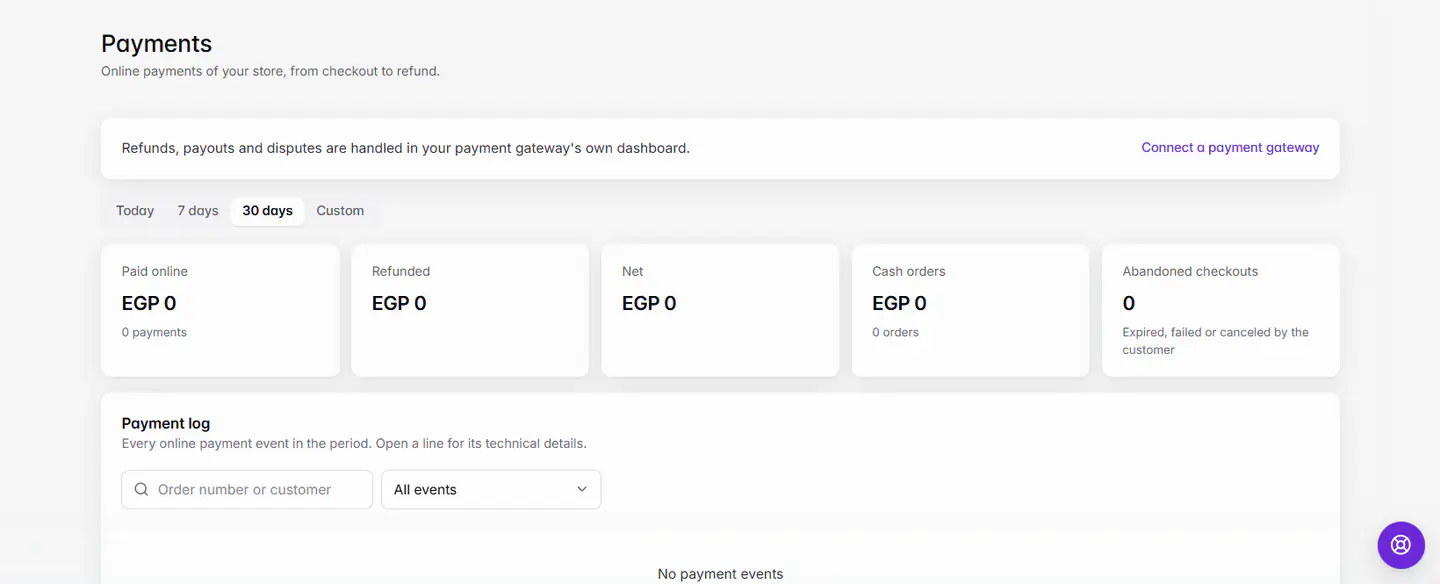
- 1Open PaymentsOn the web, click Payments in the sidebar. In the Admin app, go to Control Center › Payments.
- 2Find the orderSearch by order number or customer name, then open the line. Click Copy payment ID.
- 3Open your providerClick Open {name} dashboard, for example Open Stripe dashboard. For Tap, sign in to your Tap dashboard yourself.
- 4Refund thereFind the payment with the payment ID and refund all or part of it. In PayPal, open Activity, then the payment, then Refund.
- 5Check OrdavyaWhen your provider reports the refund, the order shows Refunded or Partially refunded, and the Payments page adds a refund line.
After you switch providers
Orders keep the provider they were paid with. Refund older orders in the old provider's dashboard. For up to 7 days after a switch, Ordavya still receives updates from the old provider and keeps its Open {name} dashboard link.
Payouts
Your provider decides when and how it pays you, and what it charges. Ordavya's Payments page shows what customers paid and refunded, but not payouts, fees or balances. Check those in your provider's dashboard.
Disputes and chargebacks
If a customer disputes a payment with their bank, your provider contacts you and you respond in its dashboard. When PayPal reverses a payment after a chargeback, the order in Ordavya shows as refunded.
Cash, bank transfers and late payments
- Cash, bank transfer and InstaPay payments never go through a provider. Return that money yourself. You can set a bank-transfer order back with Mark as not paid if needed.
- If a customer pays after their unpaid order was cancelled, the payment still shows on the Payments page. Refund it from your provider's dashboard.
- A refunded order can't be reopened.
If something goes wrong
The messages you might see, and what to do.
This order was not paid or was refunded, so it can't be reopened.
A refunded order is final. Ask the customer to place a new order.
Refunds, payouts and disputes are handled in your payment gateway's own dashboard.
This note on the Payments page is expected. Use Open {name} dashboard to get there.
Common questions
Can I refund from the Ordavya Admin app?
Not inside Ordavya. In the app, Control Center › Payments opens your provider's dashboard, where you refund.
Does Ordavya keep any fee from a refund?
No. Ordavya never holds your money. Any fee is your provider's.