Mark items out of stock
Go to Products › Item stock and switch the product off. It stays on your menu, marked as sold out, until you switch it back on. To sell out automatically, turn on Count stock and enter how many are Left now.
Updated 20 November 2026Where to find it
- Products
- Item stock
- Control Center
- Item stock
You need: Owner, or a staff member with Products or Item stock (kitchen staff have it by default).
Out of stock items stay on your menu, marked, and customers can't order them until you switch them back on. You don't need to hide or delete the product.
Switch an item off or on
- 1Open Item stockGo to Products › Item stock on the web, or Control Center › Item stock in the Admin app. You can also open Item stock from the Orders page during service.
- 2Find the productSearch by name, or filter by In stock, Out of stock, Low or Sold out.
- 3Switch it offTurn the switch off. You see "{name} is out of stock. Customers can't order it."
- 4Switch it back onWhen it's available again, turn the switch on. You see "{name} is back in stock".
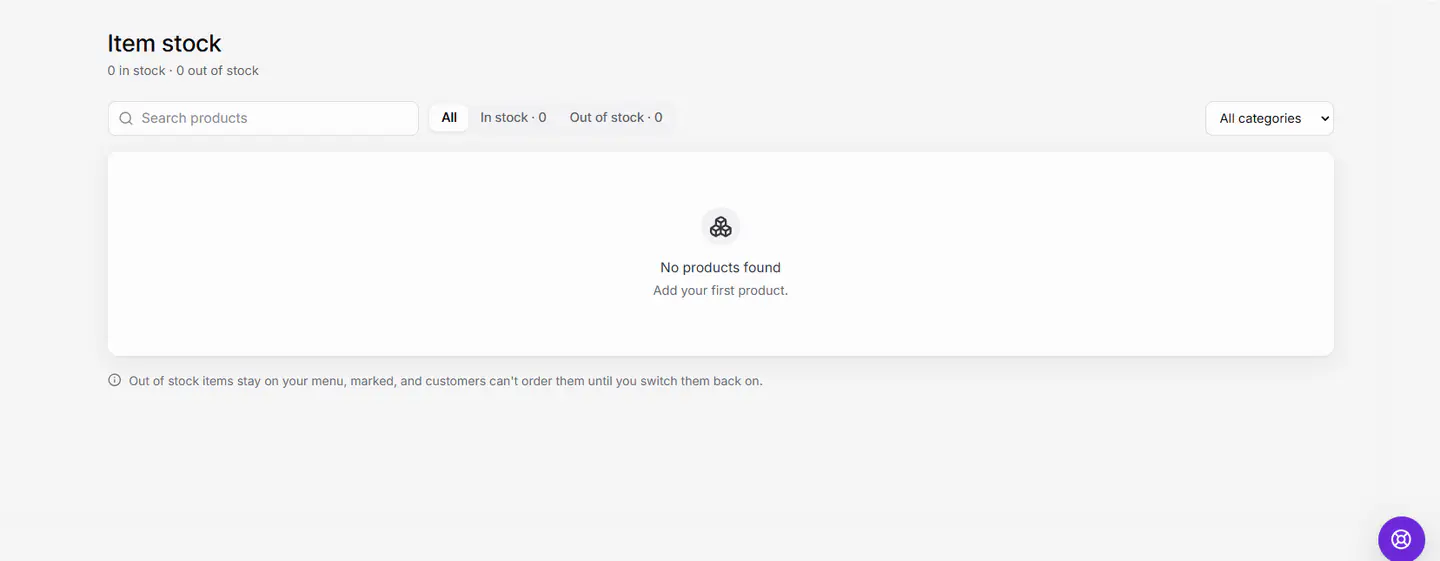
You can also switch stock from the products list (the in-stock switch on each product) or, in the Admin app, with Mark out of stock in a product's menu.
Count stock so items sell out by themselves
For things you have a fixed number of, like 20 cheesecakes a day, let Ordavya count them.
- 1Turn on Count stockOn Item stock, click Count stock on the product. Or open the product and turn on Count stock.
- 2Enter how many are leftEnter the number under Left now. Optionally set Low alert at.
- 3Top upWhen more arrive, use Add stock and enter how many to add.
- Each order takes from the count. At 0 the product is sold out; a cancelled order puts it back.
- Customers can't add more to their cart than you have left.
- With more than one branch, choose All branches together for one shared count, or Per branch so each branch counts its own. Empty means not counted there.
What customers see
Customers see the product marked as sold out with an Out of stock button, and the message "Out of stock right now. Check back soon, or see the rest of the menu." If an item runs out while it's in someone's cart, they see "This item just ran out. Please pick something else."
If something goes wrong
The messages you might see, and what to do.
Turn on Count stock first.
Switch on Count stock for the product before adding stock.
This product counts stock per branch.
Enter the count for each branch in the product's stock sheet, not one total.
Enter a count from 0 to 1,000,000.
Type a whole number in that range.
You can't change this product.
Ask the owner for the Item stock or Products permission.
Common questions
Does marking out of stock remove the product from my website?
No. It stays on the menu, marked as sold out, so customers know it exists. Use Hidden status if you want it gone.
Can kitchen staff do this without seeing prices or settings?
Yes. Give them only the Item stock permission. The Kitchen staff role has it. See Staff roles explained.