The media library: upload images and videos
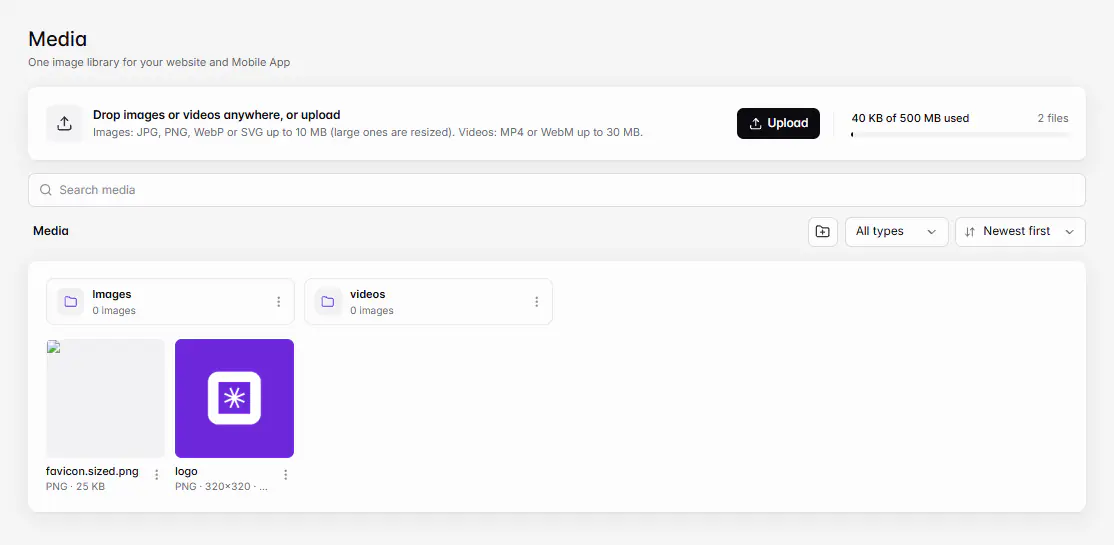
Go to Storefront › Media and click Upload or drag files in. Images can be JPG, PNG, WebP or SVG up to 10 MB; videos MP4 or WebM up to 30 MB. Everything is shared by your website, app and products.
Updated 20 November 2026Where to find it
- Storefront
- Media
- Control Center
- Media
You need: Owner, or a staff member with Media or another permission that uses photos, such as Products or a design permission.
Media is one image library for your website and mobile app. Photos you upload here can be used on products, categories, banners and any block in Ordavya Studio.
Upload files
- 1Open MediaGo to Storefront › Media. In the Admin app, go to Control Center › Media.
- 2UploadClick Upload, or drag files onto the page. On your phone, choose From photos or From files.
- 3Organise (optional)Create a New folder and move files into it. Rename files so they're easy to find.
| File | Limits |
|---|---|
| Images | JPG, PNG, WebP or SVG up to 10 MB. Large images are resized. SVG up to 512 KB. |
| Videos | MP4 or WebM up to 30 MB. |
| Folders | Up to 100, with names up to 60 characters. |
Free photos
When you choose a photo for a product, a category or a block, or open Media inside the Ordavya Studio editor, switch from My media to Ordavya library for photos picked by Ordavya, sorted by category and free to use on your website and app. The Unsplash tab there searches Unsplash for more free photos.
Crop, copy and delete
- Crop and rotate saves the result as a new image, so the original stays.
- Copy link copies the file's address.
- Select several files to delete them together. Products and designs that use a deleted file will show no image.
Use your media
When you add a photo to a product, a category or a block in Ordavya Studio, you pick it from the same library, and you can upload a new file from there too. The Admin app uses the same library, so a photo you upload on your phone is ready on the web dashboard.
Storage
The meter shows "{used} of {quota} used". Your plan sets the storage. Once 80% is used, owners see Get more storage, which opens plans with more. See What happens when you reach a plan limit.
If something goes wrong
The messages you might see, and what to do.
This image is too large to store. Use an image under 10 MB.
Resize or compress the image, then upload it again.
Use an MP4 or WebM video.
Convert the video to MP4 or WebM, under 30 MB.
A folder with this name already exists.
Pick a different folder name.
A project can have up to 100 media folders.
Delete or merge some folders first.