Choose or change a template
To change templates, open Designs, choose New design › Start from a template, pick one and select Create design. Edit it, Publish, then Set as live. Your current design stays until you switch.
Updated 20 November 2026Where to find it
- Storefront
- Ordavya Studio
- Website
- Ordavya Studio
You need: Owner, or staff with Website designer or Mobile app designer. A free design slot on your plan.
A template is a ready-made design to start from. When you create a design from a template, you get your own copy: later changes Ordavya makes to the template never touch it.
Switch your store to another template
- 1Open your designsOn the web, go to Storefront › Ordavya Studio and select Designs on the Website or Mobile App card. In the Admin app, open the Ordavya Studio tab and tap Designs.
- 2Create a designSelect New design ("Blank, a copy or a template") and choose Start from a template.
- 3Pick a templateBrowse the templates and pick one. You can change its colours later in Theme.
- 4Name itUnder Name your design, type a name of up to 60 characters, such as "Summer menu", then select Create design. It opens in the editor as a Draft.
- 5Make it yoursChange the texts, photos and blocks. Nothing goes live while you edit.
- 6Publish and set it liveSelect Publish. In the dialog that follows, select Set as live to switch your store to the new design now.
Other ways to start a design
| Choice | What you get |
|---|---|
| Create with AI | "Describe your business; the AI designs it in seconds." Uses AI credits. See Create your store with AVYA AI. |
| Start from a template | "One of Ordavya's starter layouts." |
| Start from scratch | "An empty home page with the default theme." |
| Duplicate an existing design | "Copy one of your designs", including edits you haven't published. |
The Templates gallery
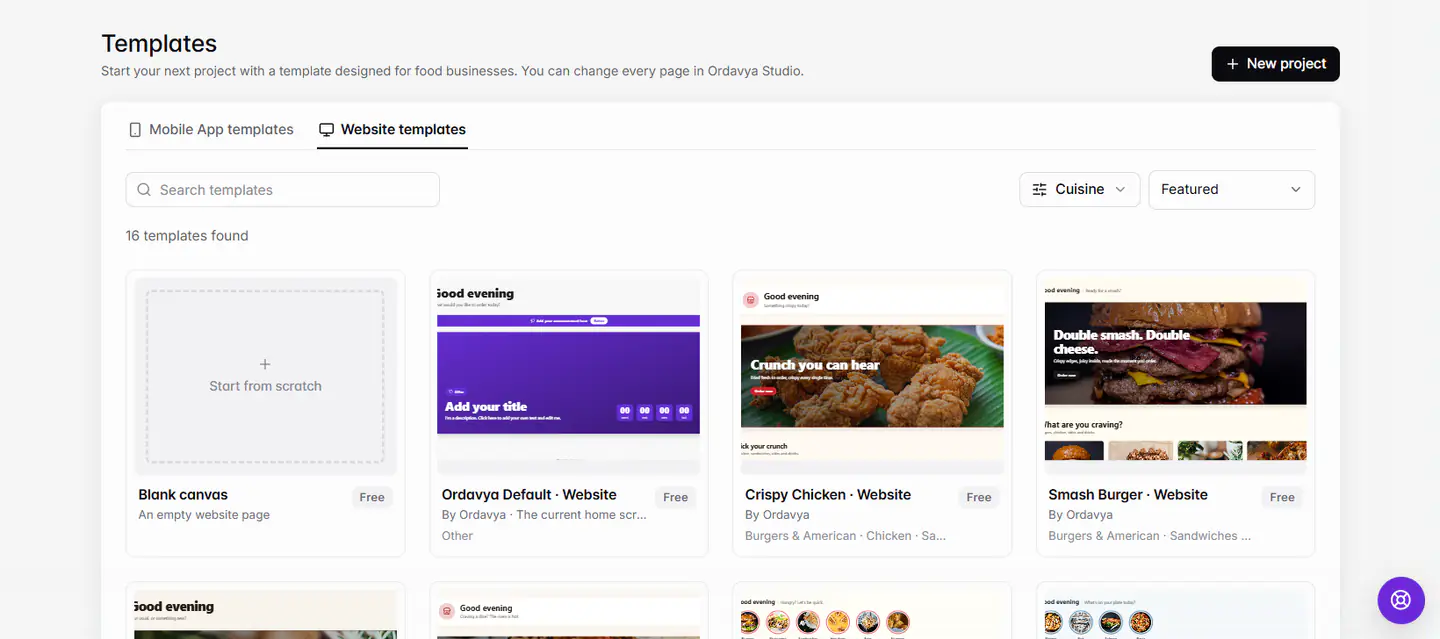
Templates in the account area lets you browse every website and mobile app template, filter by category and sort by Featured, Name A–Z or With a starter menu. Preview opens a template in a new tab. Use template starts a new project from it; for a store you already have, use New design as above.
Try before you switch
Because a new design stays a draft until you set it live, you can try several templates side by side. Use Preview on the Designs list to compare published versions, and only set one live when you're happy with it.
If something goes wrong
The messages you might see, and what to do.
You've used all your designs. Delete an archived design or upgrade your plan.
Archive a design you don't need, then delete it from Archived, or upgrade your plan in Settings › Plan & usage.
Give the design a name.
Type a name before you select Create design.
Up to 60 characters.
Shorten the design name.
Common questions
Will I lose my products if I change templates?
No. Your menu, prices and photos live in Products, not in the design. The new design shows the same products.
Can I go back to my old design?
Yes. Setting a new design live keeps the old one as a draft. Open Designs and select Set as live on it.